




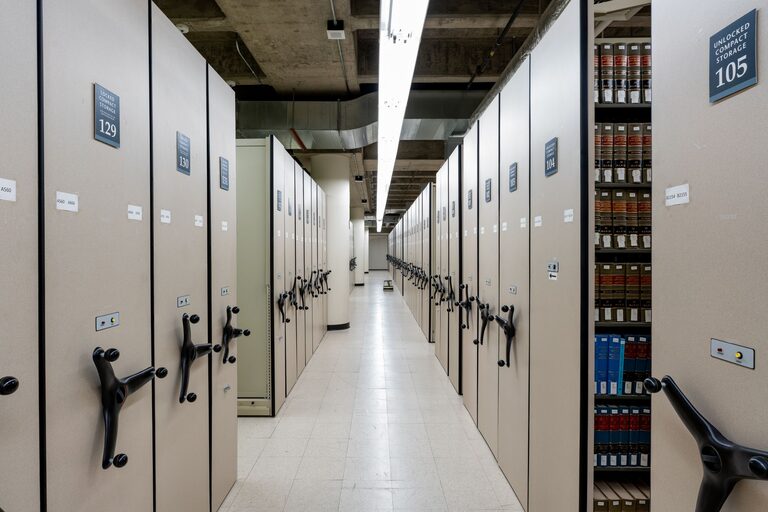




Keeping your computer files organized can save you time, reduce stress, and help you work more efficiently. Whether you use your computer for work, school, or personal projects, a clear folder structure and consistent naming system make finding files easier. In this article, we’ll explore practical tips to organize your files and keep your digital workspace clutter-free.
Why Is File Organization Important?
When files are scattered or poorly named, it can take minutes or even hours to locate what you need. Disorganized files can also lead to accidental deletion or duplication. An organized system helps you:
– Quickly find documents and media
– Keep track of important files
– Save storage space by removing duplicates
– Improve overall computer performance
Now, let’s dive into how you can set up a system that works for you.
Start with a Clear Folder Structure
One of the most effective ways to organize files is by creating a logical folder hierarchy. Think of folders as drawers in a filing cabinet and files as the papers inside.
Tips for Building Folder Hierarchies
– Use broad categories first: Start with main folders like Work, Personal, School, or Projects.
– Create subfolders for specifics: Inside Work, you might have folders for Reports, Presentations, or Clients.
– Limit folder depth: Avoid having too many nested folders, which can make navigation cumbersome.
– Be consistent: Use similar folder structures across different main folders to reduce confusion.
Example folder structure:
“`
/Work
/Clients
/Reports
/Presentations
/Personal
/Photos
/Finance
/Health
/School
/Assignments
/Lecture Notes
“`
Use Clear and Consistent File Naming
Folder organization is only half the battle; file naming is equally important. Descriptive file names help you identify files without opening them.
Naming Tips
– Be descriptive: Include the content and date if relevant, e.g., “ProjectProposal_March2024.docx.”
– Avoid spaces and special characters: Use underscores or dashes instead, like “Budget_Report_2024.pdf.”
– Use leading zeros for numbers: For example, “File_01,” “File_02” to keep files sorted properly.
– Keep it short but informative: Too long names can be hard to read but don’t sacrifice clarity.
Regularly Review and Delete Unnecessary Files
Even with a good system, files can pile up. Set a reminder every month or quarter to review your folders and remove files you no longer need.
– Delete duplicates: Use duplicate file finder tools to clear repeated content.
– Archive old files: Move older files you might want to keep but don’t need regularly to an external drive or cloud storage.
– Empty trash/recycle bin: Remember to clear deleted files to free up space.
Take Advantage of Built-In Tools
Modern operating systems come with tools to help manage files efficiently.
Use Search and Tags
– Search functions: Learn how to use your computer’s search feature to quickly find files by name, date, or content.
– Tags and labels: Some systems, like macOS, allow you to add colored tags to files for easier grouping.
Use Shortcuts and Favorites
– Add frequently used folders to your favorites panel or create desktop shortcuts for quick access.
Keep Backups
No organization system is complete without making backups. Losing important files can be frustrating and costly.
– Use cloud storage services like Google Drive, OneDrive, or Dropbox.
– Regularly back up to an external hard drive.
– Enable automatic backups if your operating system supports it.
Tips for Specific File Types
Some files may require special attention.
Photos and Videos
– Organize by year and event, for example, “2023_Vacation” or “2024_Birthday.”
– Use photo management software for tagging and sorting.
Documents
– Group documents by project or topic.
– Use version numbers if you edit files frequently, such as “Report_v1,” “Report_v2.”
Downloads Folder
– Avoid letting the Downloads folder become a dumping ground.
– Set a routine to move files from Downloads to their appropriate folders regularly.
Tools to Help You Organize
If manual organization feels overwhelming, consider these tools:
– File managers: Alternatives like Total Commander or Directory Opus offer enhanced file handling.
– Duplicate finders: Apps like CCleaner or Duplicate Cleaner scan your drives for repeats.
– Cloud storage apps: Many provide automatic syncing and file organization features.
Final Thoughts
Organizing your computer files doesn’t have to be complicated. By establishing a clear folder structure, using consistent naming, regularly cleaning up, and backing up your data, you’ll maintain a clutter-free digital environment. Start small, and build habits that make file management a natural part of your computer use.
Happy organizing!